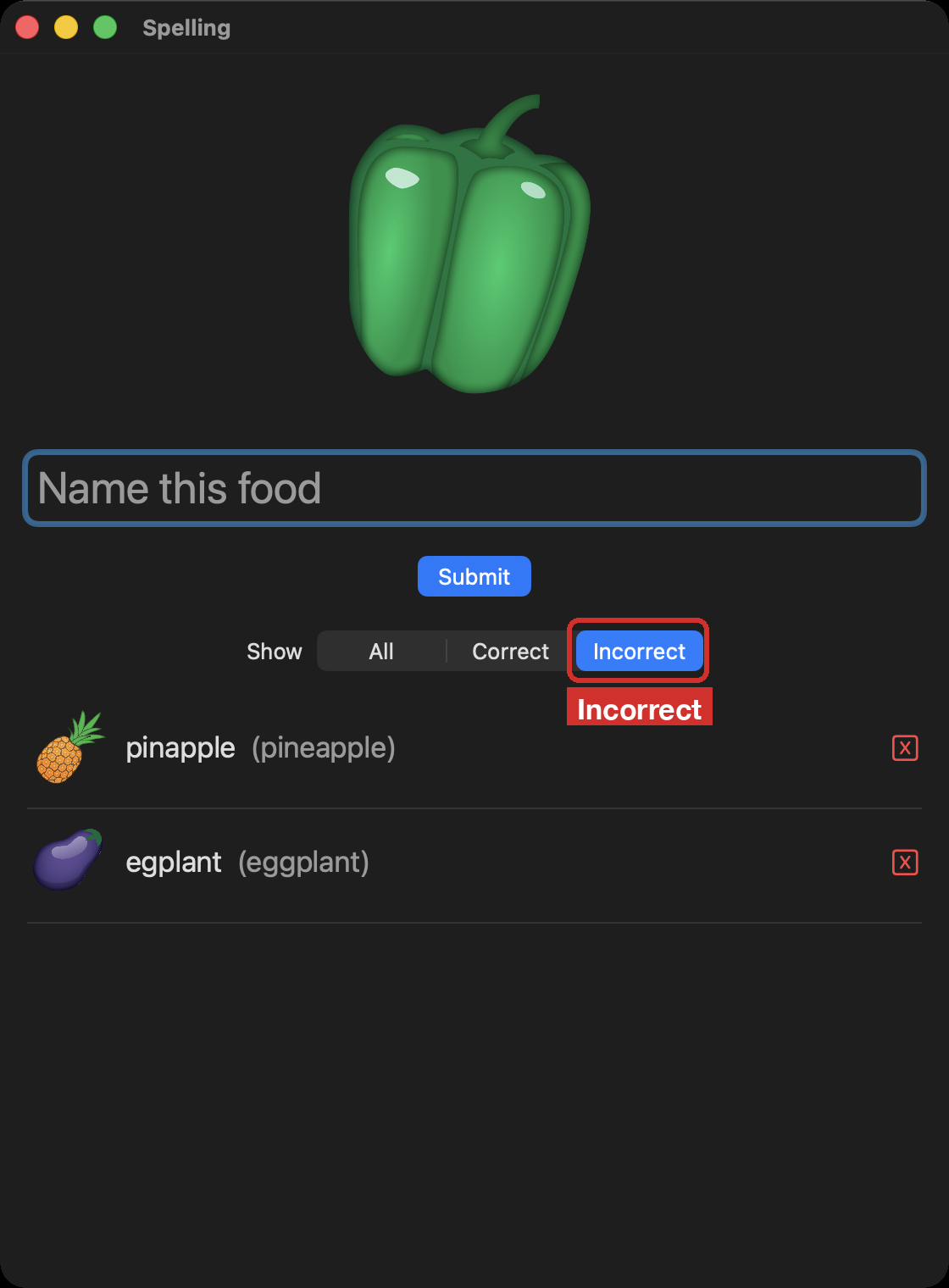
In this app, a child sees a picture of a food, types its name, and finds out whether they spelled it correctly. Every attempt goes into a list, and the child can choose to see all of their attempts, only the correct ones, or only the incorrect ones.
You build it one small step at a time, and you commit after every step. Along the way, you review two ideas you will need for the Create task: arrays and functions. At the end, you see where this app meets each Create task requirement.
1. Create the project
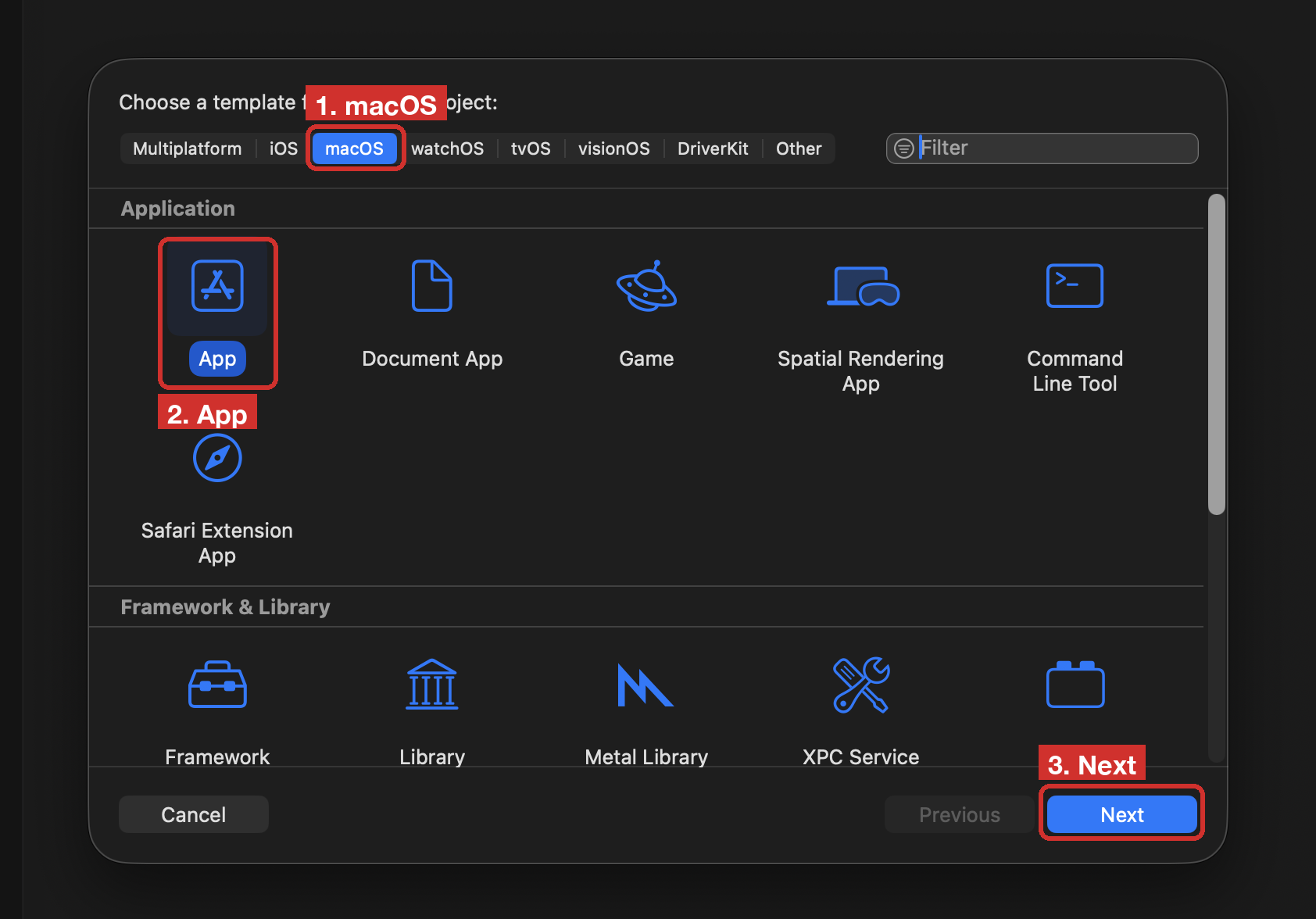
In Xcode, choose File > New > Project…, then Choose Template…. Pick macOS, then App, then Next:
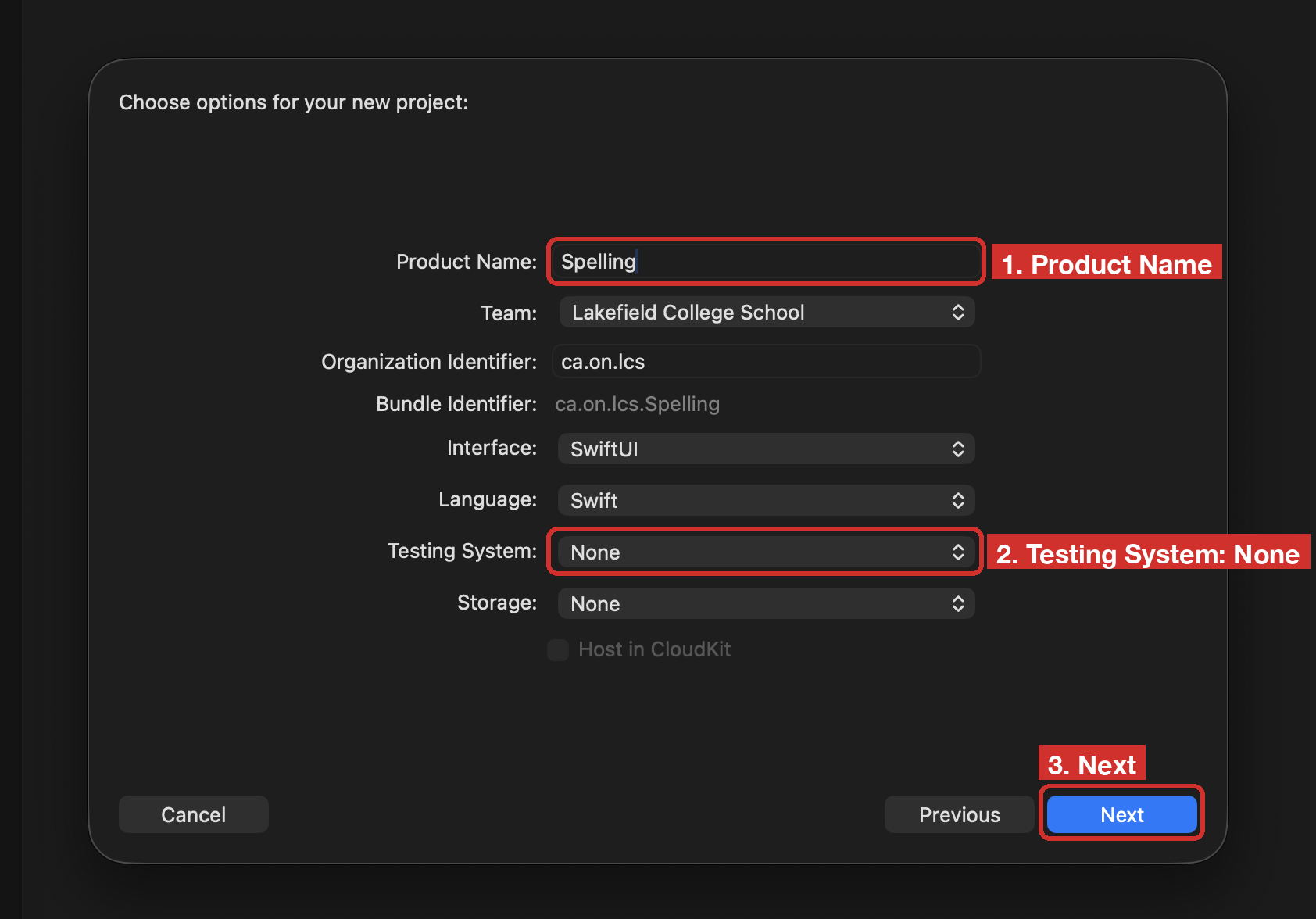
Name the product Spelling. Set Testing System to None. Then Next:
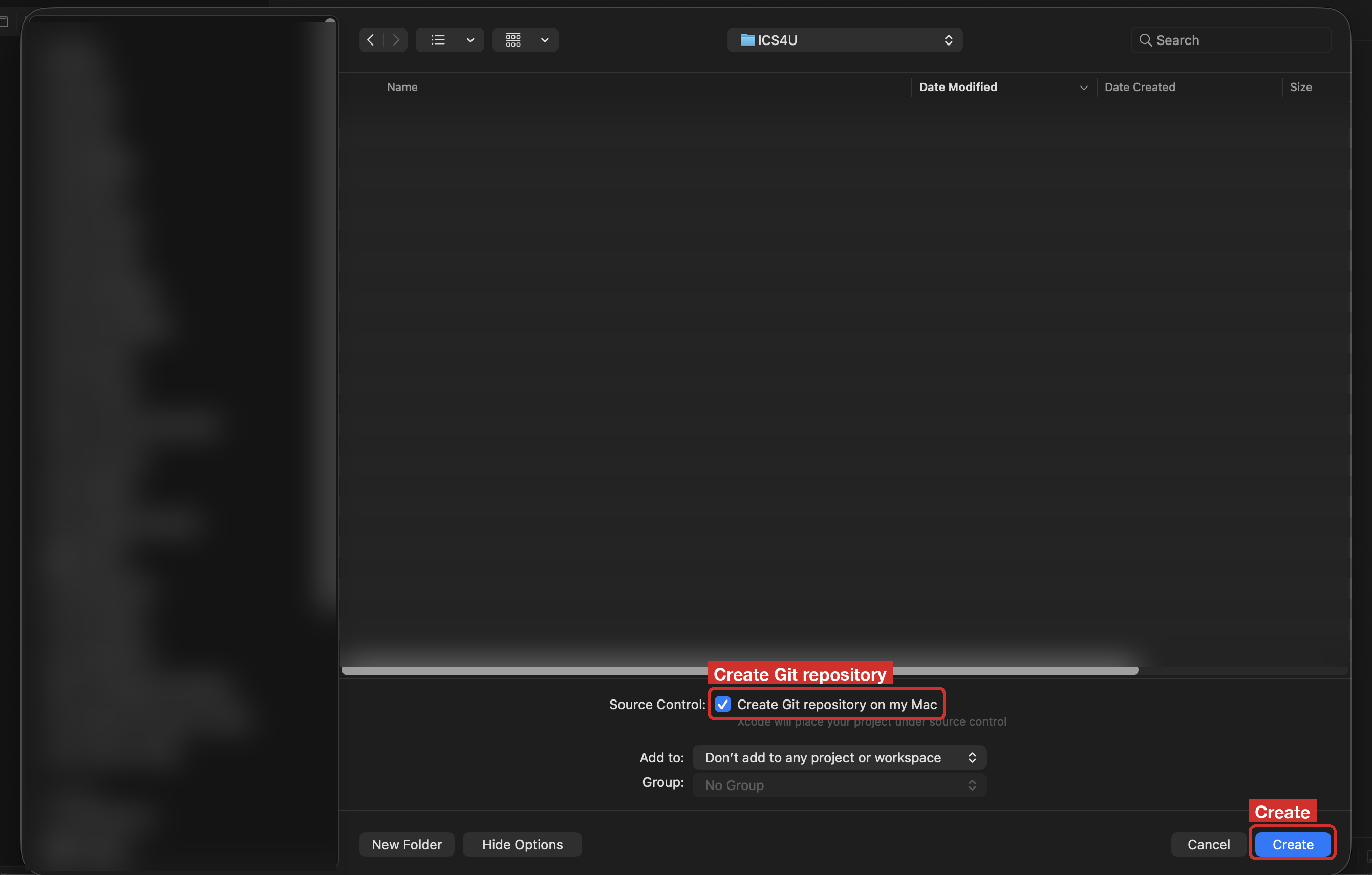
Save it in a folder for your Xcode projects, not in iCloud. Leave Create Git repository on my Mac ticked, then Create:
Xcode makes the first commit for you, with the message Initial Commit.
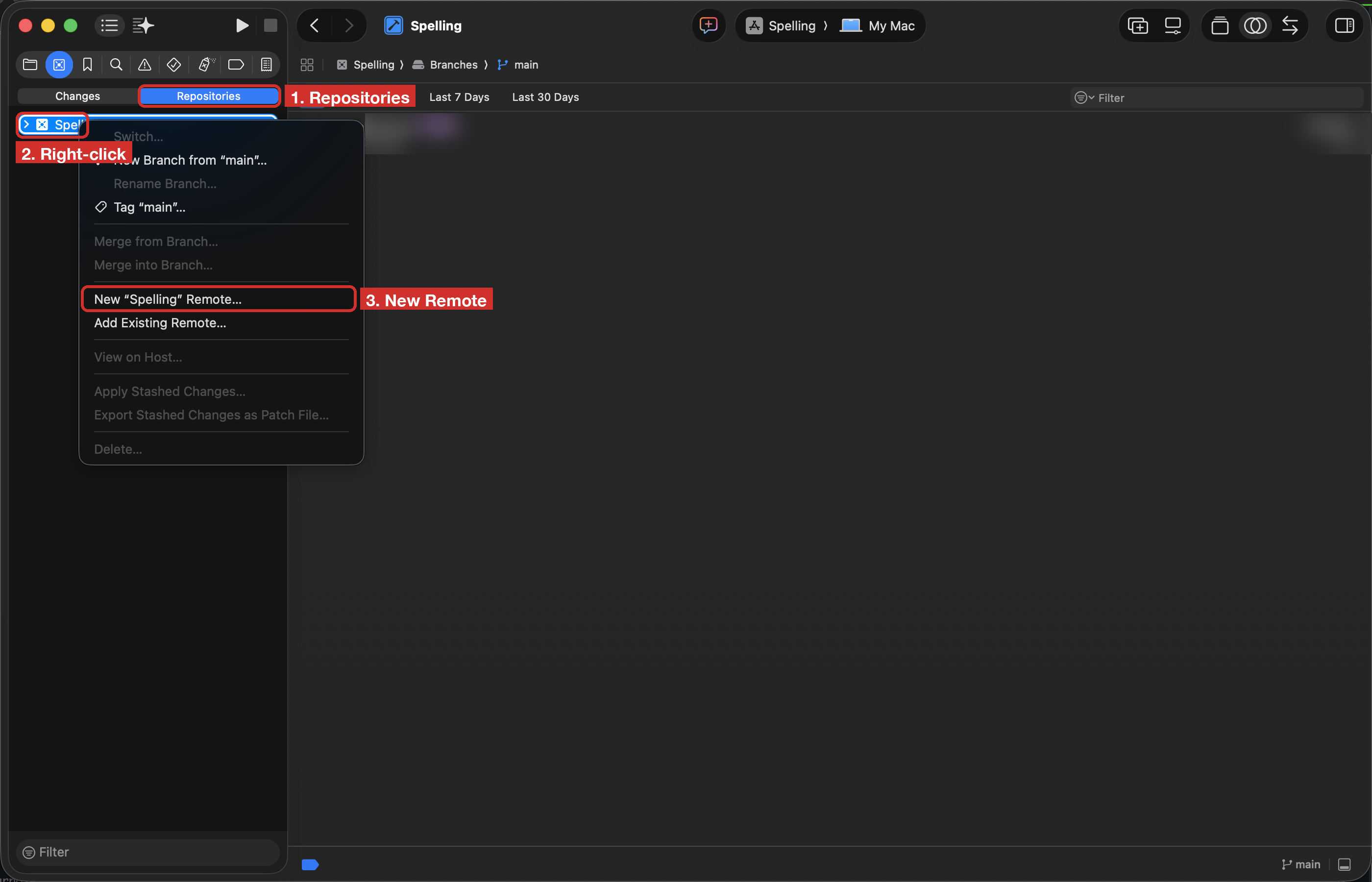
Now put the repository on GitHub. Press Command-2 to open the Source Control navigator and choose Repositories. Right-click Spelling and choose New “Spelling” Remote…:
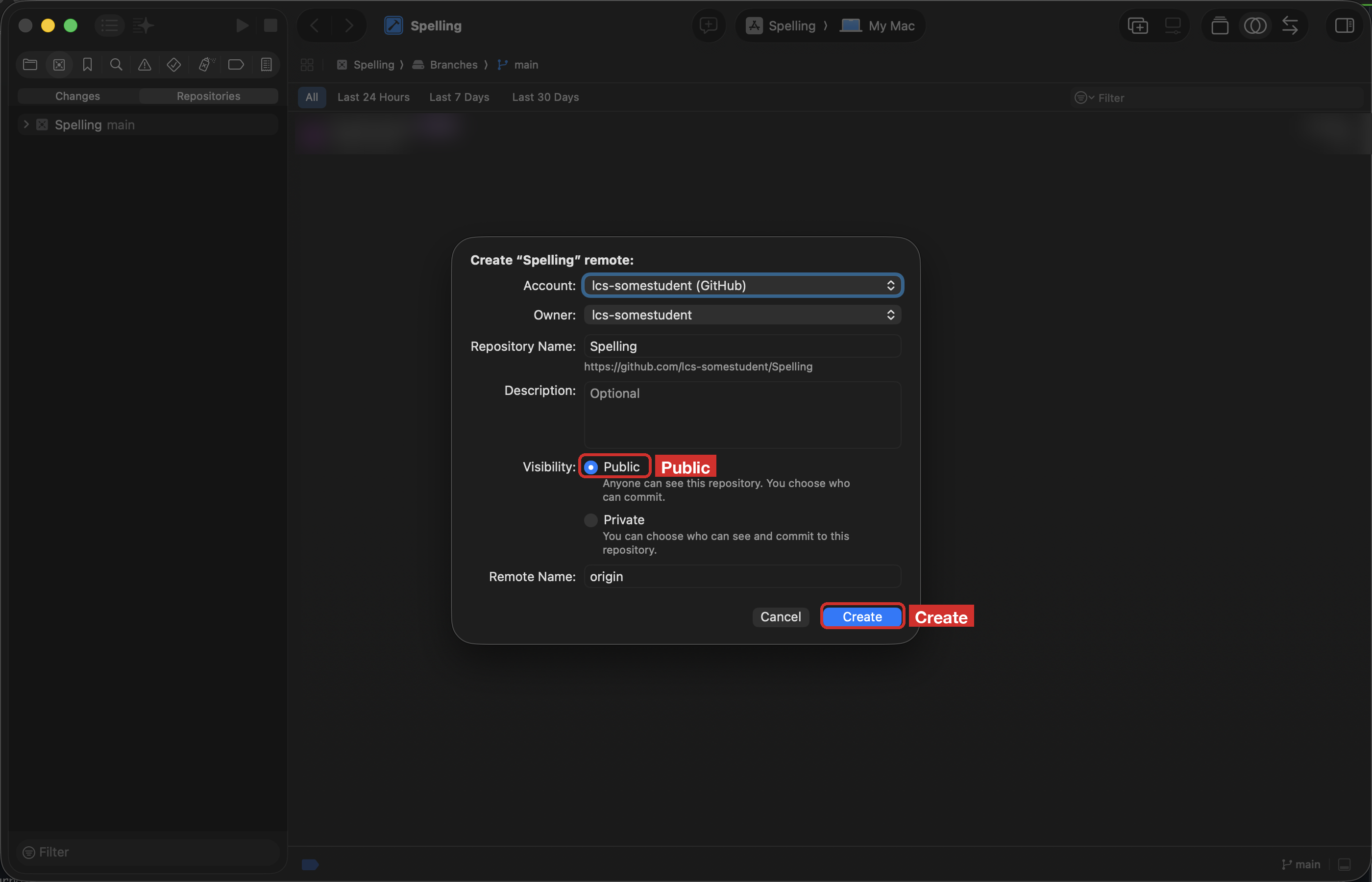
Your own GitHub account is the owner. Leave Public chosen, then Create:
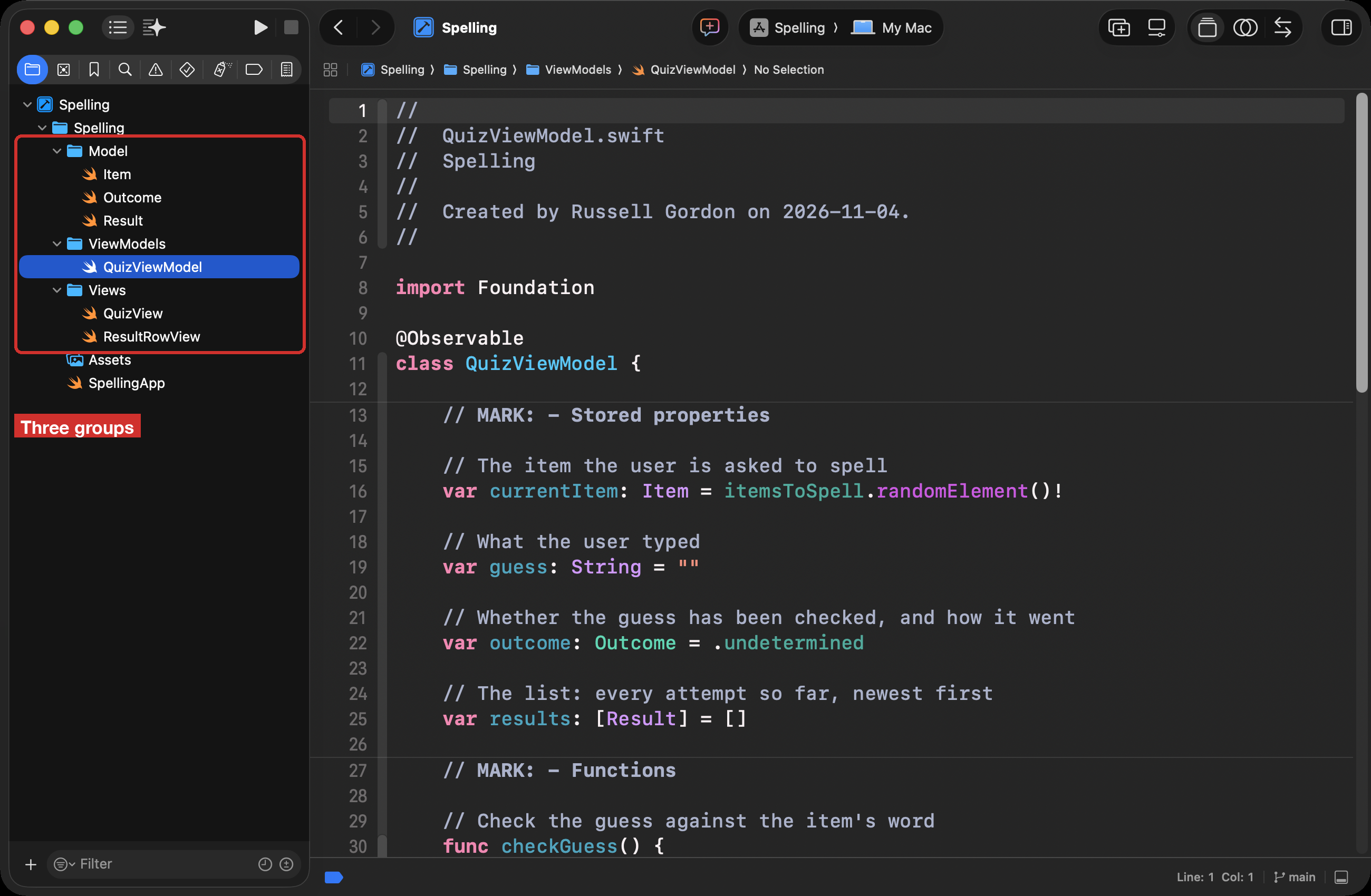
Make the three groups
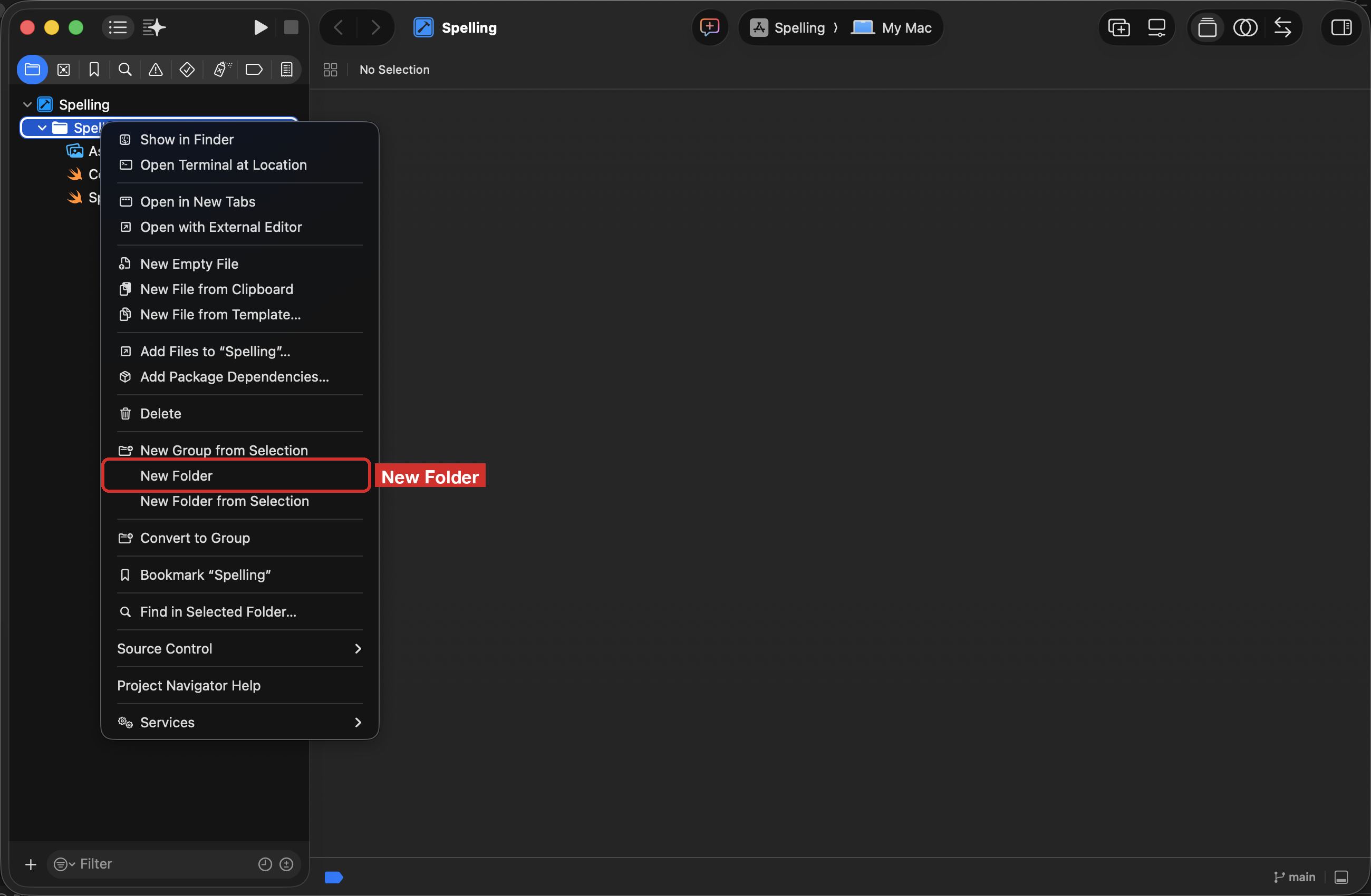
MVVM splits an app into three parts, and each part gets its own group. Press Command-1 to go back to the Project navigator. Right-click the yellow Spelling folder (inside the blue Spelling project) and choose New Folder:
Type Model and press Return. Do the same twice more, to make ViewModels and Views:
Model: the data. Here, one food to spell, the outcome of a guess, and the result of one attempt.
ViewModels: the logic. It picks a food, checks the guess, and keeps the list of results.
Views: what the user sees.
An empty group has nothing to commit yet, so there is no commit for this step. Each group is committed along with the first file you put in it.
2. The model: one item, and the list of items
The pictures
The app needs 35 pictures of food. Open the Spelling2025 repository on GitHub, click the green Code button, and choose Download ZIP. In Finder, open your Downloads folder. If you see a ZIP file, double-click it to unpack it. Open the folder Spelling2025-main, then Spelling, then Assets.xcassets. Select every folder whose name ends in .imageset, from apple.imageset to watermelon.imageset. A file called Contents.json sits in the middle of that list: hold Command and click it once to leave it out. Then copy the folders (Command-C).
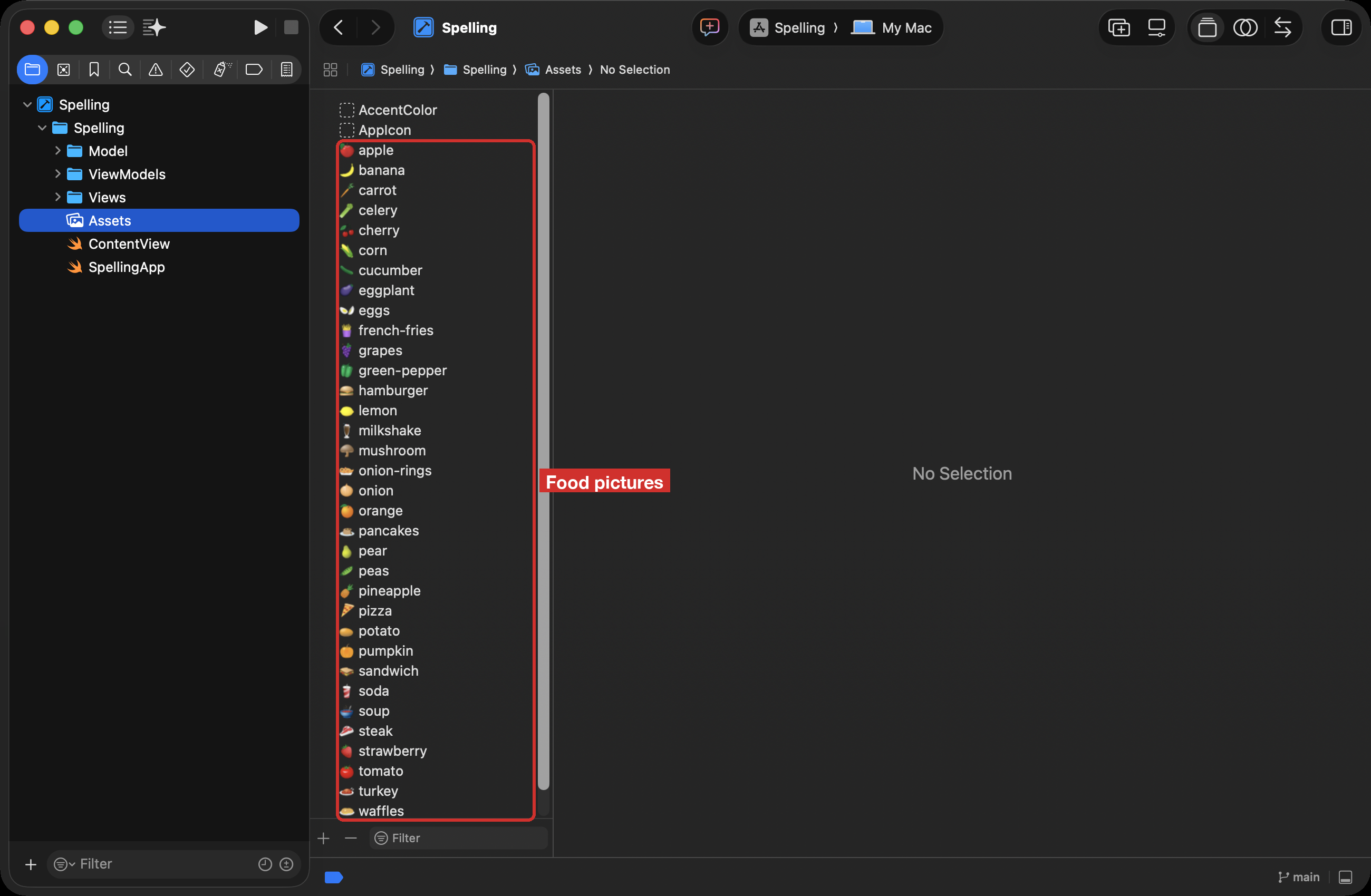
In Xcode, right-click Assets in the Project navigator, choose Show in Finder, open Assets.xcassets, and paste (Command-V). Back in Xcode, click Assets. The food pictures are listed:
Each picture has a name, such as apple or french-fries. That name is how your code asks for the picture.
One item
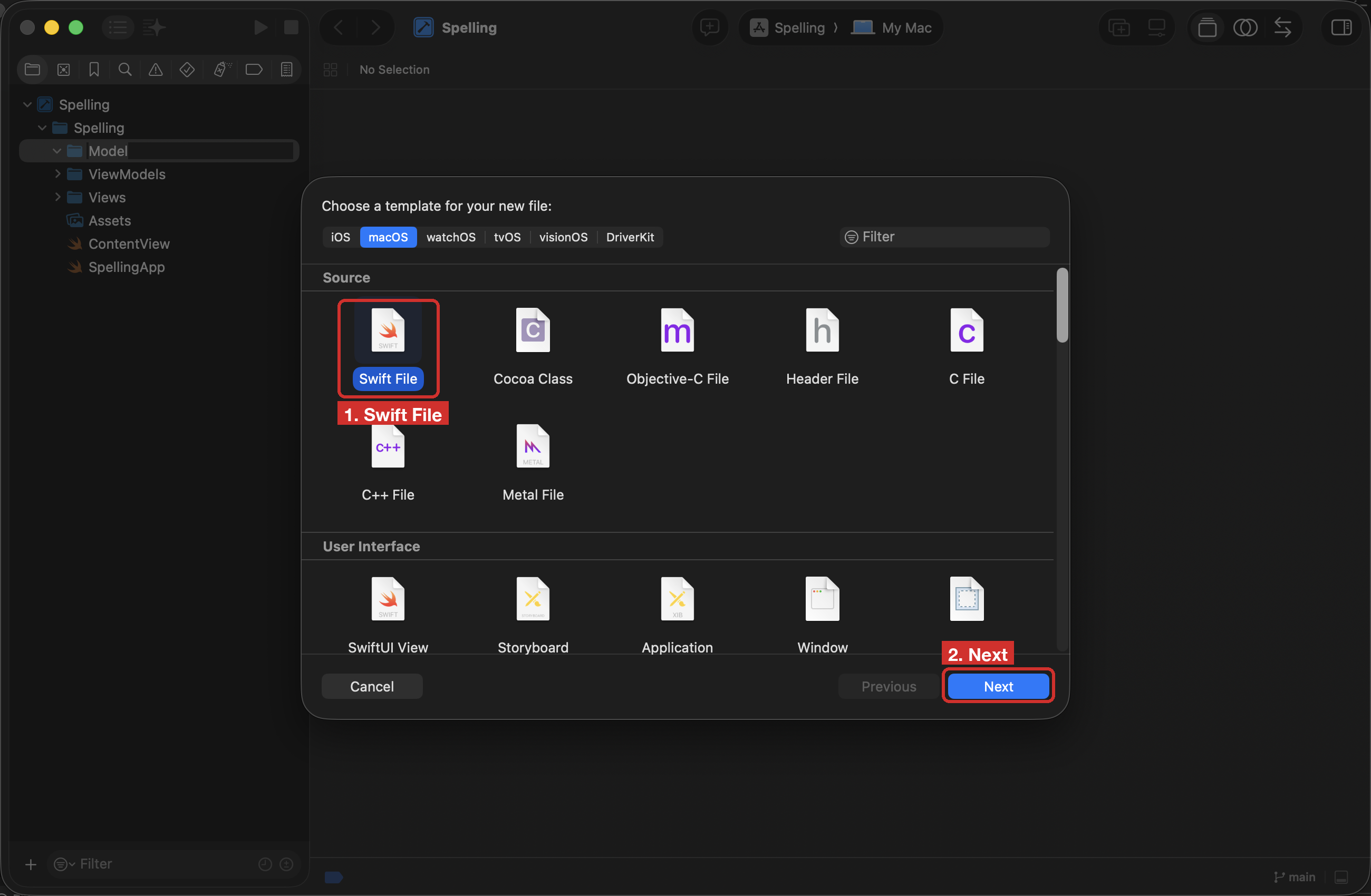
Select the Model group and choose File > New > File from Template… (Command-N). Pick Swift File, then Next:
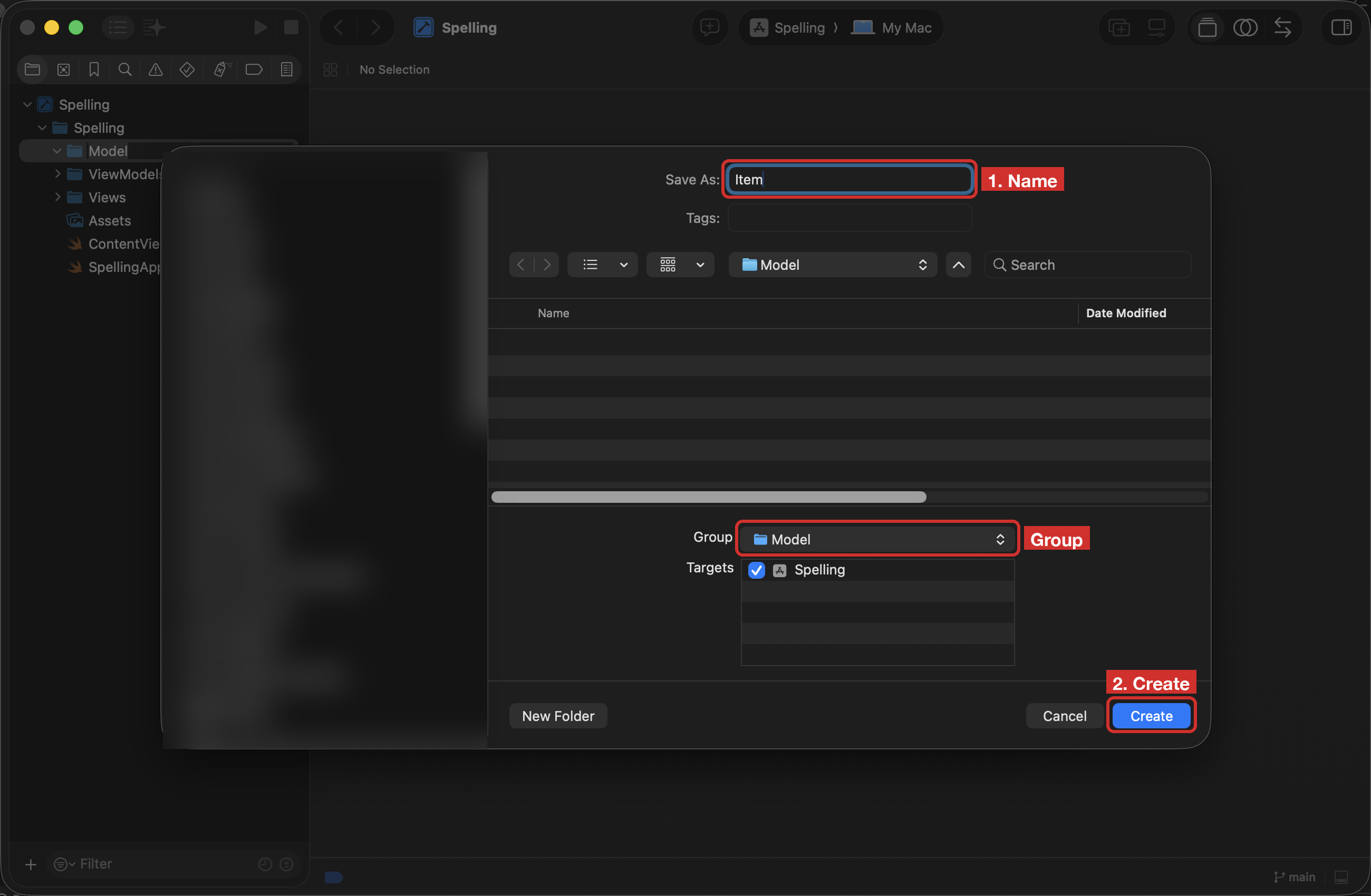
Name it Item. Check that Group says Model, then Create:
Under import Foundation, type this:
// One food the user can be asked to spellstruct Item: Identifiable { // MARK: - Stored properties let id = UUID() let word: String let imageName: String}
An Item holds two pieces of text: the word the child must spell, and the imageName of its picture. Identifiable, with its id, lets SwiftUI tell items apart when it shows them on screen.
The list of items
Below the structure, in the same file, add the list:
Notice that the word and the picture’s name are not always the same: the word is french fries, with a space, and the picture is french-fries, with a hyphen.
Recap: arrays
An array is one name for many values, kept in order. Look at the first line of the list:
let itemsToSpell: [Item] = [
The type [Item], with square brackets, means “an array of Item values”. Everything between the opening [ and the closing ] is in the array, with a comma between one value and the next.
Each value has a position, called its index, and counting starts at 0, not 1. So the first item is at index 0 and the second at index 1:
carrot, then french-fries, then 35. Index 2 is the third item, because counting starts at 0. Index 9 is the tenth item, French fries, and imageName gives its picture’s name, with the hyphen.
Press Command-B to build. Xcode says Build Succeeded. Nothing on screen uses the list yet, so if you run the app it still says “Hello, world!“.
Commit
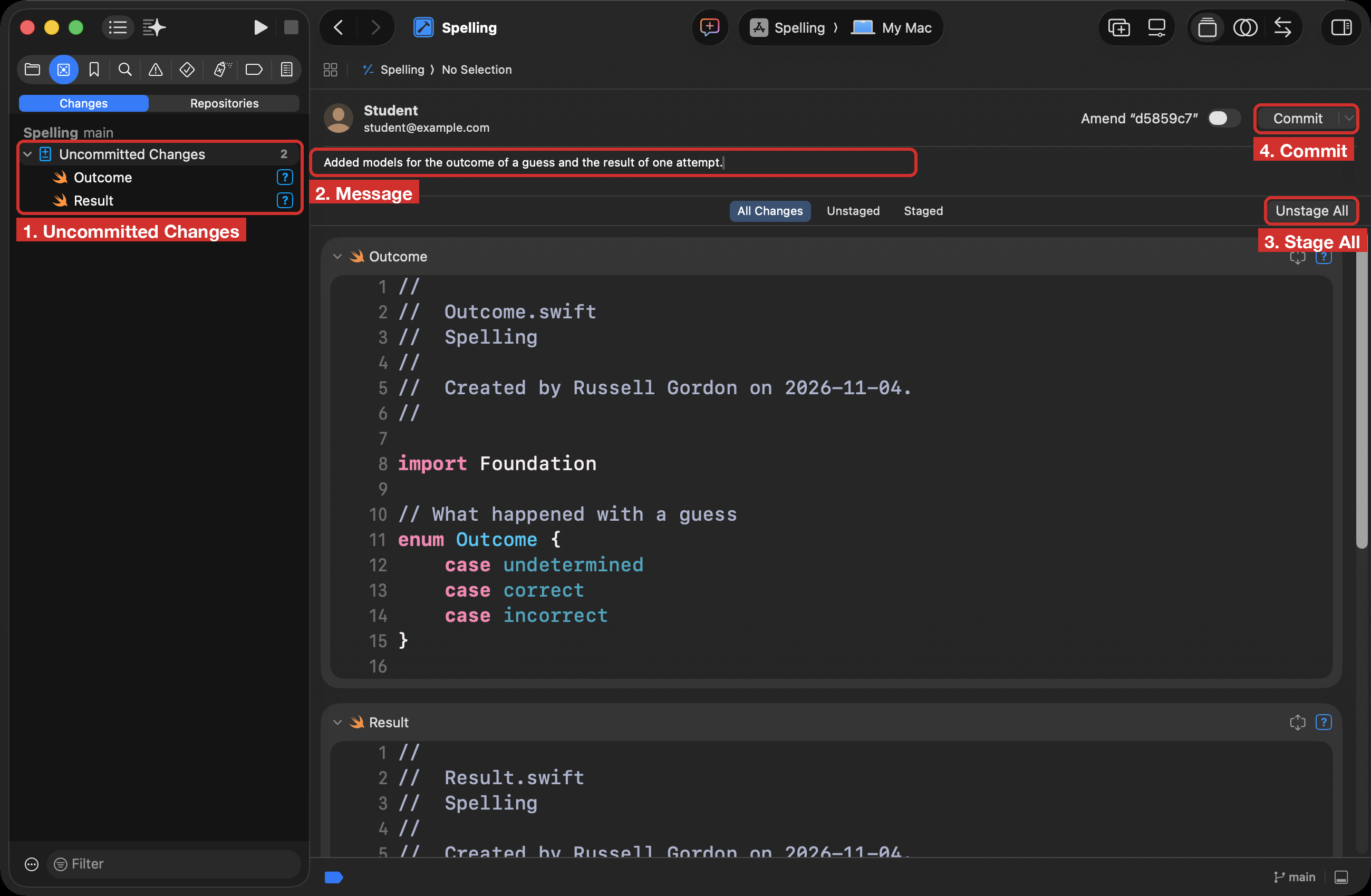
Press Command-2 and choose Changes. Then:
Click Uncommitted Changes.
Type the message: Added a Model group with the food pictures, a model for one item, and the list of items to spell.
Choose Stage All. Once everything is staged, the button reads Unstage All.
Click Commit.
Here is the commit screen at the next step, which has two new files. At this step, yours lists Item and the 35 pictures:
Commit the same way at the end of every step below.
3. The model: the outcome of a guess, and one result
A guess is in one of three states: not checked yet, correct, or incorrect. An enumeration lists every possible state, so the app can never be in a state you did not plan for.
In the Model group, make a Swift file named Outcome. Under import Foundation, type:
// What happened with a guessenum Outcome { case undetermined case correct case incorrect}
Next, make a Swift file named Result in the Model group. It holds one attempt: which item was shown, what the child typed, and how it went. Under import Foundation, type:
// The result of one attempt to spell an itemstruct Result: Identifiable { // MARK: - Stored properties let id = UUID() // The item the user was asked to spell let item: Item // What the user typed let guessProvided: String // Whether the guess was right let outcome: Outcome}
A Result has an Item inside it, and an Outcome too. A structure can hold values of the types you made yourself.
Build with Command-B. Xcode says Build Succeeded.
Commit with the message: Added models for the outcome of a guess and the result of one attempt.
4. The view model: pick an item and check the guess
Select the ViewModels group and make a Swift file named QuizViewModel. Under import Foundation, type the class and its stored properties:
@Observableclass QuizViewModel { // MARK: - Stored properties // The item the user is asked to spell var currentItem: Item = itemsToSpell.randomElement()! // What the user typed var guess: String = "" // Whether the guess has been checked, and how it went var outcome: Outcome = .undetermined}
@Observable means any view that reads these properties redraws when they change.
Look at where the current item comes from:
var currentItem: Item = itemsToSpell.randomElement()!
Recap: picking at random
randomElement() picks one value from the array at random. If an array were empty, there would be nothing to pick, so randomElement() might give back nothing. The ! says “I know this list is never empty”. That is true here, because you typed 35 items into itemsToSpell.
Now add a function that checks the guess. Put it inside the class, after the last stored property and before the closing }:
// MARK: - Functions// Check the guess against the item's wordfunc checkGuess() { if guess.lowercased() == currentItem.word { outcome = .correct } else { outcome = .incorrect }}
lowercased() turns Apple into apple before comparing, so a capital letter at the start is not marked wrong. Every word in itemsToSpell is written in lowercase letters.
Recap: functions
A function is a named set of steps. Here it is again:
func starts it, and checkGuess is its name, which says what it does.
The empty brackets () mean it takes no parameters: it needs no extra information, because it reads guess and currentItem from the view model.
There is no -> after the brackets, so it gives no value back. It does its job by changing outcome.
The steps between { and } are its body. They do not run when the function is written; they run each time the function is called.
You call this function from the view in the next step, when the user clicks Submit:
viewModel.checkGuess()
Check yourself
The current item is French fries, so currentItem.word is "french fries". What is outcome after checkGuess() runs when the user typed each of these?
French Fries
french fry
frenchfries
Answer
.correct: lowercased() turns French Fries into french fries, which matches.
.incorrect: fry is not fries.
.incorrect: the space is missing, and a space is a character like any other.
Build with Command-B. Xcode says Build Succeeded.
Commit with the message: Added a ViewModels group with a view model that picks an item and checks the guess.
5. The view: the picture, the guess, and the Submit button
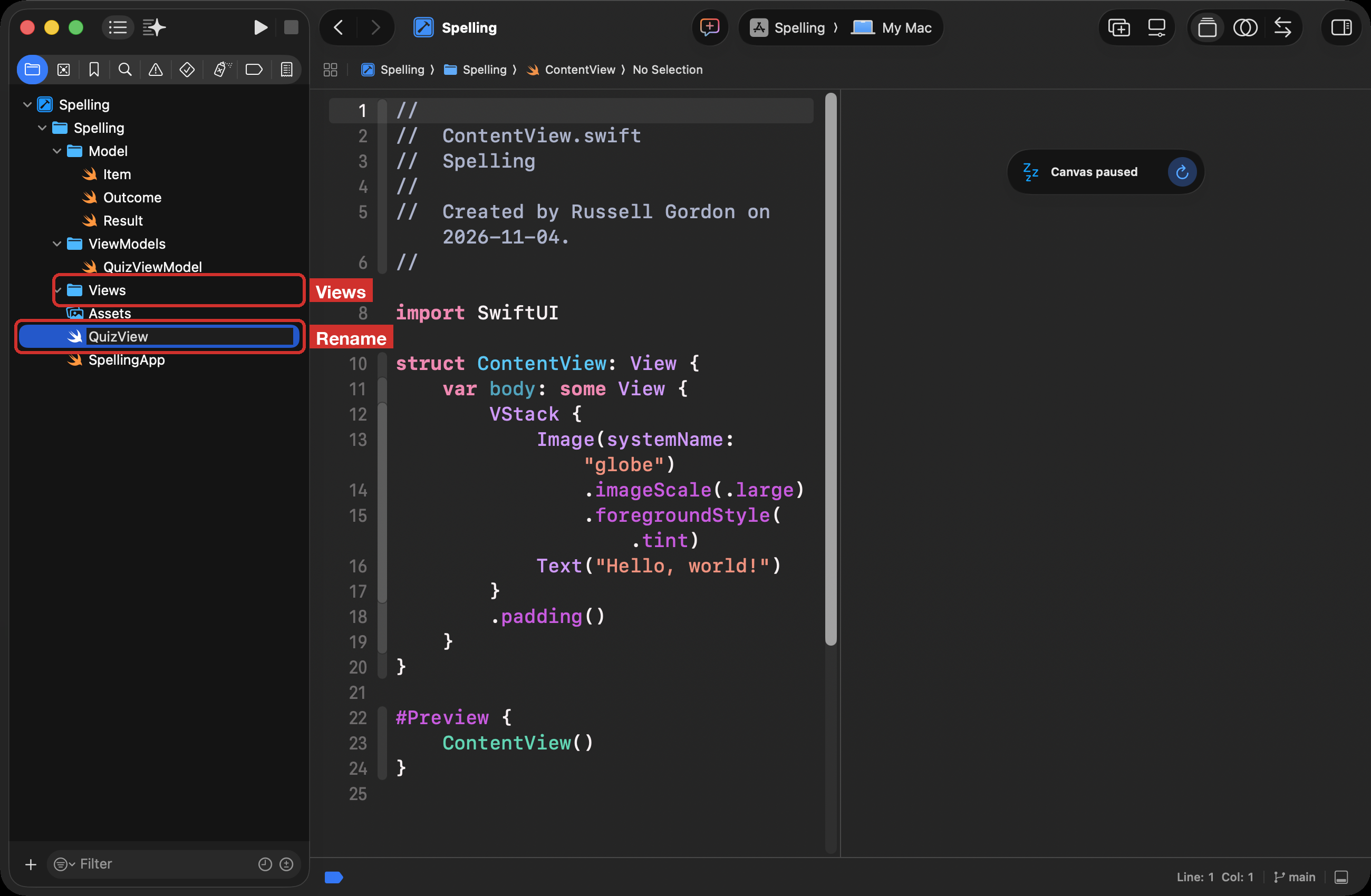
Xcode made a view called ContentView. A file should be named for what it does, so rename it. Press Command-1, click ContentView in the Project navigator, press Return, type QuizView, and press Return again. Then drag QuizView into the Views group:
Renaming the file does not rename the code inside it. In QuizView, change the first line of the structure from this:
struct ContentView: View {
to this, and add the view model as a stored property:
The view owns the view model with @State, so the view model lives as long as the view does.
Now replace the whole body, from var body: some View { to its closing }, with this:
var body: some View { VStack(spacing: 20) { // The picture to spell Image(viewModel.currentItem.imageName) .resizable() .scaledToFit() .frame(height: 200) // The guess, and whether it was right HStack { TextField("Name this food", text: $viewModel.guess) .textFieldStyle(.roundedBorder) if viewModel.outcome == .correct { Image(systemName: "checkmark.circle") .foregroundStyle(.green) } else if viewModel.outcome == .incorrect { Image(systemName: "x.square") .foregroundStyle(.red) } } .font(.largeTitle) // Check the guess Button("Submit") { viewModel.checkGuess() } .buttonStyle(.borderedProminent) } .padding()}
Three things to notice:
Image(viewModel.currentItem.imageName) shows the picture whose name is stored in the current item.
The $ in $viewModel.guess is a binding: what the user types goes straight into the view model’s guess.
The view does no checking itself. The button calls the view model’s function:
Button("Submit") { viewModel.checkGuess()}
At the bottom of QuizView, change the preview from ContentView() to QuizView():
#Preview { QuizView()}
Open SpellingApp and change ContentView() to QuizView():
WindowGroup { QuizView()}
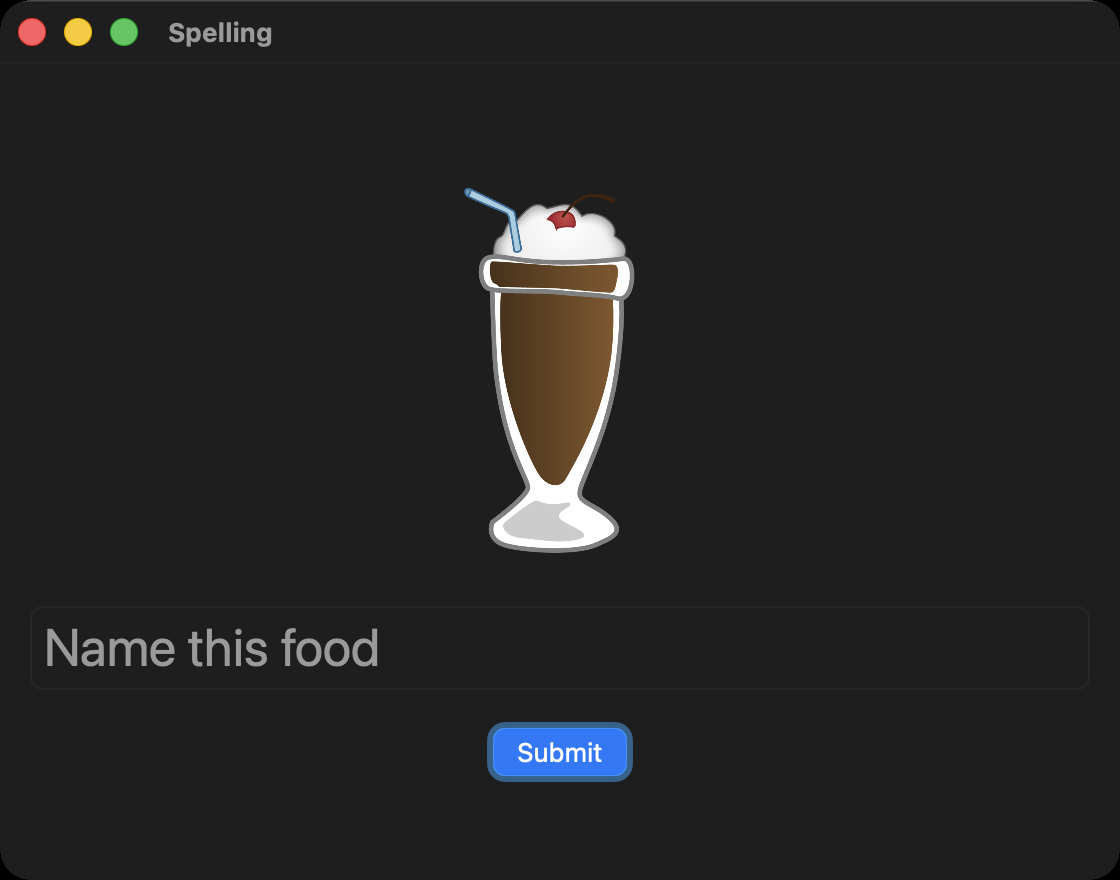
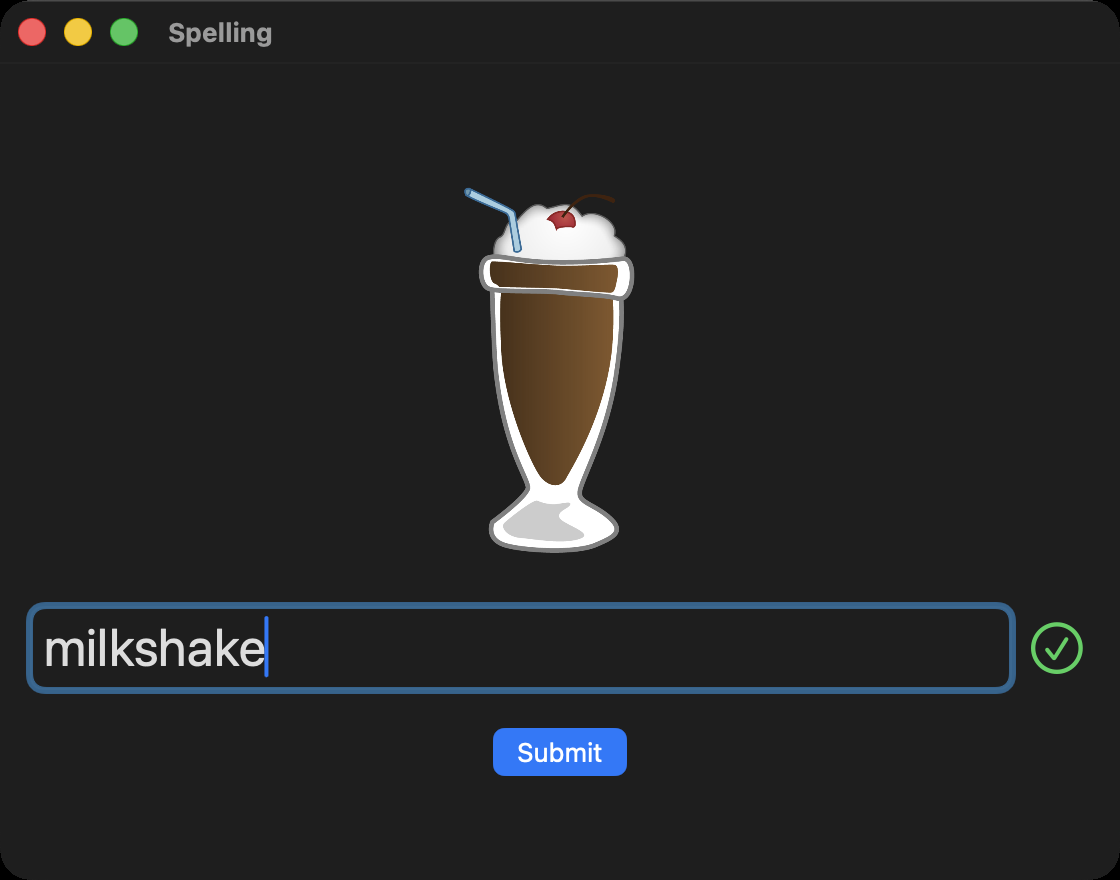
Press Command-R to build and run. You see a food, an empty box, and the Submit button. The food is chosen at random, so yours is probably a different one:
Type the food’s name and click Submit. A green check mark appears. Try a wrong spelling, and a red cross appears instead:
There is no way to move on to a new food yet. That comes next.
Commit with the message: Added a Views group; the quiz view shows the picture, the guess field, and the Submit button.
6. Save each attempt in a list
The list in the view model
Open QuizViewModel. Under the outcome stored property, add a second array, this one for results:
// The list: every attempt so far, newest firstvar results: [Result] = []
[Result] is an array of Result values, and [] means it starts empty. Unlike itemsToSpell, it is declared with var, because it grows while the app runs.
Under checkGuess(), add a function that saves the attempt and moves on to a new food:
// Save this attempt in the list, then move on to a new itemfunc newWord() { let newResult: Result = Result( item: currentItem, guessProvided: guess, outcome: outcome ) results.insert(newResult, at: 0) currentItem = itemsToSpell.randomElement()! guess = "" outcome = .undetermined}
Like checkGuess(), this function has no parameters and gives back no value. The steps in its body run in order: make a result from the current attempt, put it in the list, pick a new item, and clear the guess and the outcome.
Recap: append or insert
There are two ways to add a value to an array. append adds it at the end:
results.append(newResult)
insert adds it at the index you give, and moves everything after it along by one:
results.insert(newResult, at: 0)
This app uses insert at index 0, so the newest attempt is always first, at the top of the list the child sees. With append, the newest attempt would be at the bottom.
One row of the list
Select the Views group and make a new SwiftUI View file named ResultRowView. Xcode fills it with a view that says “Hello, World!“. Above struct ResultRowView: View {, add a comment that says what the view is for:
// Shows one prior result in the liststruct ResultRowView: View {
Then, under that line, add a stored property for the result the row shows:
Open QuizView. Once a guess is checked, the Submit button should change to a New word button. Replace the Submit button, from // Check the guess down to .buttonStyle(.borderedProminent), with this:
// Check the guess, or move onif viewModel.outcome == .undetermined { Button("Submit") { viewModel.checkGuess() } .buttonStyle(.borderedProminent)} else { Button("New word") { viewModel.newWord() } .buttonStyle(.bordered)}// Prior resultsScrollView { VStack { ForEach(viewModel.results) { result in ResultRowView(result: result) Divider() } }}
ForEach makes one ResultRowView for each result in the array, newest first, with a line between rows.
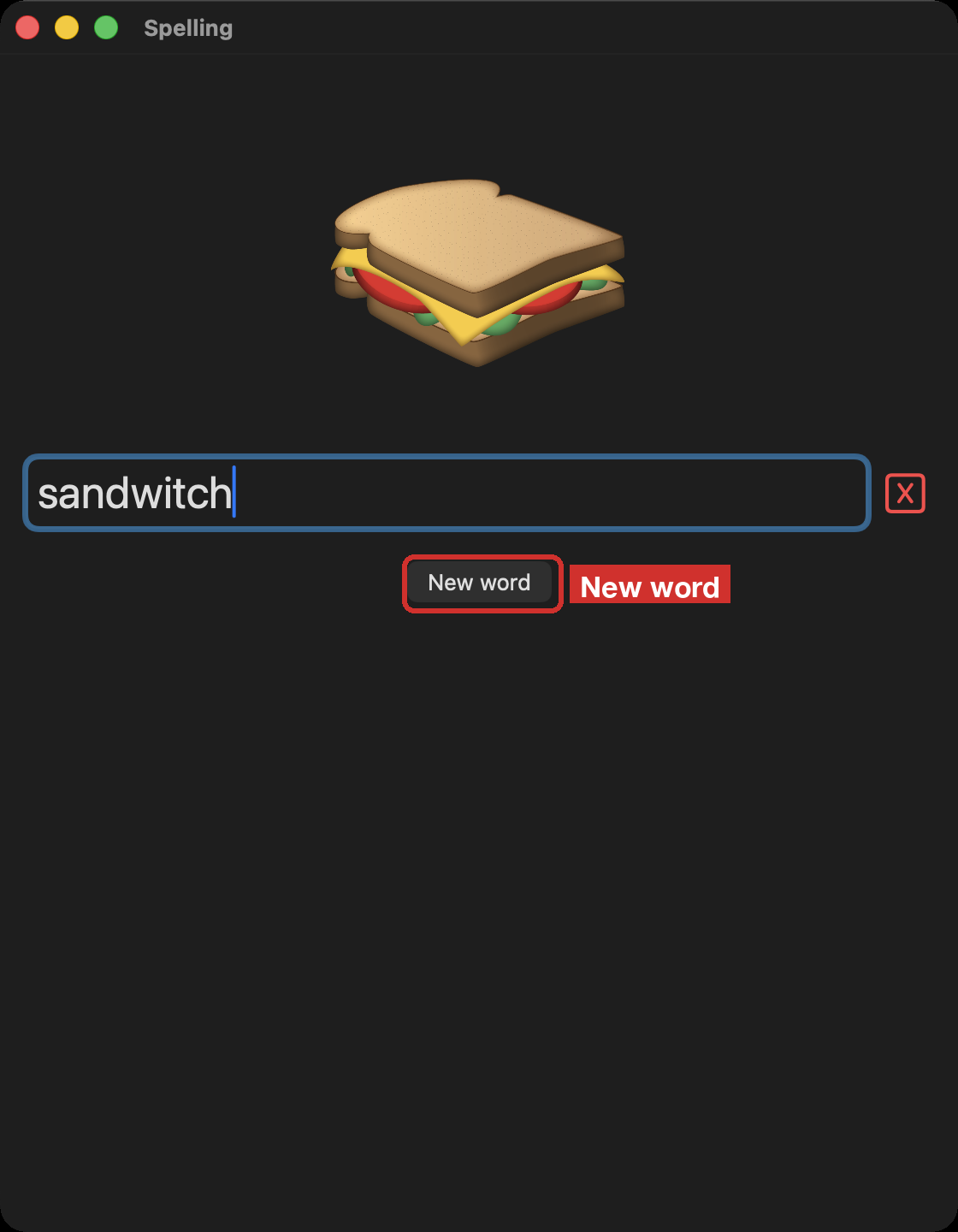
Press Command-R. Make the window taller by dragging its bottom edge, so there is room for the list. Type a guess and click Submit. The button now reads New word:
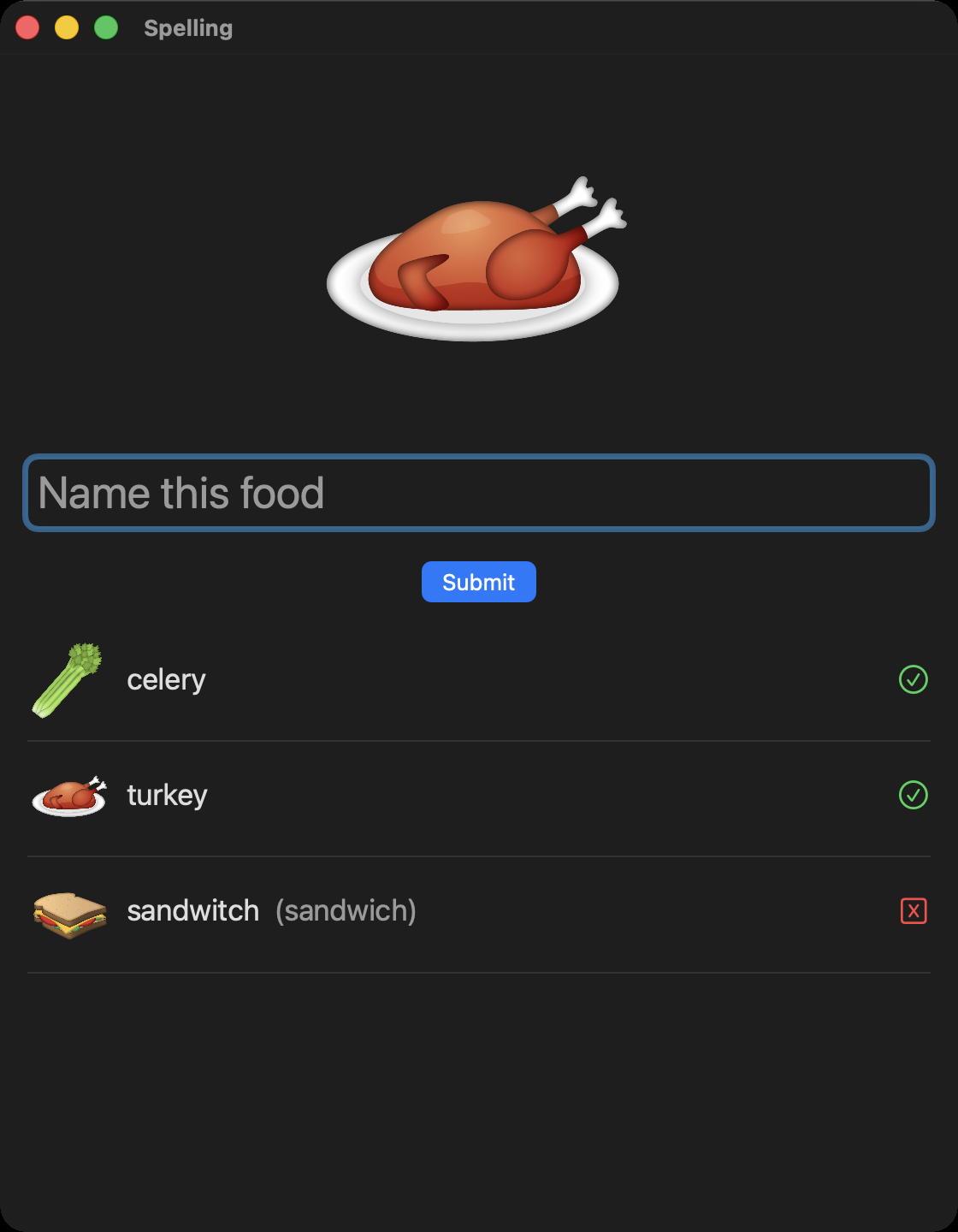
Click New word. Your attempt moves into the list, and a new food appears. Try a few more, some right and some wrong. The newest is always at the top:
Commit with the message: Added a list of results; New word saves each attempt and shows it in a row.
7. The procedure: keep only the results the user asks to see
Now the child should be able to choose which attempts to see: all of them, only the correct ones, or only the incorrect ones. A function with a parameter does this.
Open QuizViewModel. Add this function under checkGuess():
// The procedure: keep only the results the user asked to seefunc keepResults(matching choice: String) -> [Result] { var matchingResults: [Result] = [] for result in results { if choice == "All" { matchingResults.append(result) } else if choice == "Correct" && result.outcome == .correct { matchingResults.append(result) } else if choice == "Incorrect" && result.outcome == .incorrect { matchingResults.append(result) } } return matchingResults}
choice is a parameter: a value handed in each time the function is called. Its type is String, and it changes what the function does.
matching is the parameter’s argument label, the word used at the call site, so the call reads like a sentence: keepResults(matching: "Incorrect"). Inside the function, the value is called choice.
-> [Result] is the return type: the function gives back an array of results.
Inside the body, matchingResults is a local variable. It exists only while the function runs, and it starts empty:
var matchingResults: [Result] = []
The last line hands the finished array back to whoever called the function:
return matchingResults
Recap: iterating over an array
A for-in loop runs its body once for each value in an array, in order:
for result in results { if choice == "All" { matchingResults.append(result) } else if choice == "Correct" && result.outcome == .correct { matchingResults.append(result) } else if choice == "Incorrect" && result.outcome == .incorrect { matchingResults.append(result) }}
Each time through, result is the next value from results: first the one at index 0, then index 1, and so on to the end. You never write an index yourself, and the loop works whether the list holds no results, three, or three hundred. Inside the loop, append adds each result that matches the choice to the end of matchingResults, so the kept results stay in the same order, newest first.
Open QuizView. Under the viewModel stored property, add a second stored property for what the child chose:
// Which results to show: All, Correct, or Incorrect@State var choice: String = "All"
Then replace everything from // Prior results down to the closing } of the ScrollView with this: a picker above the list, and a ForEach line that gets the list from the procedure:
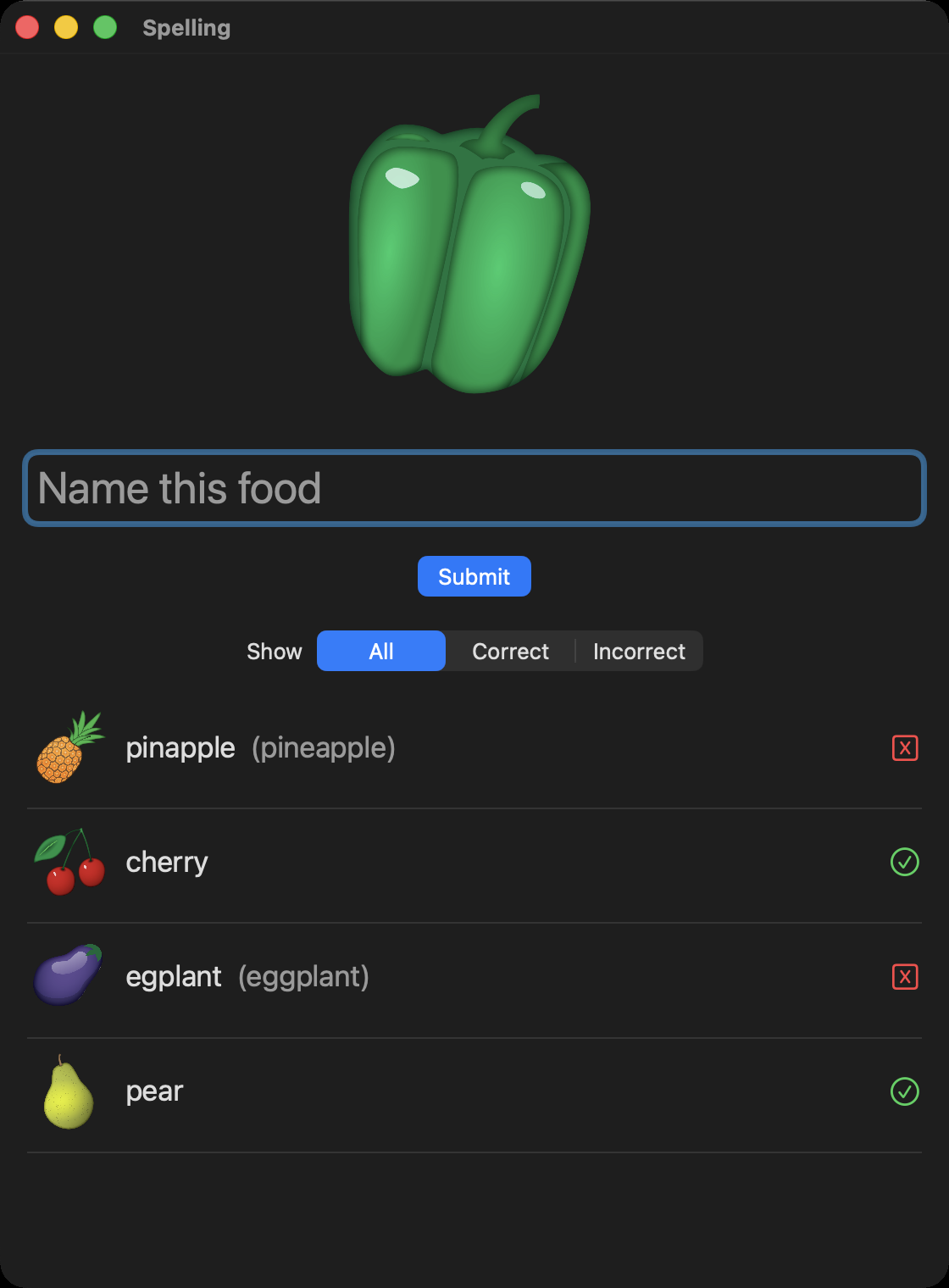
// Which results to showPicker("Show", selection: $choice) { Text("All").tag("All") Text("Correct").tag("Correct") Text("Incorrect").tag("Incorrect")}.pickerStyle(.segmented)// Prior results, from the procedureScrollView { VStack { ForEach(viewModel.keepResults(matching: choice)) { result in ResultRowView(result: result) Divider() } }}
Each tag is the text that goes into choice when that segment is picked. Those are the same three strings the procedure compares against:
"Correct": two results, cherry and then pear, in that order. The loop visits index 0, 1, and 2, and appends only the two whose outcome is .correct.
"Incorrect": one result, eggplant.
"Everything": no results, an empty array. "Everything" is not equal to "All", "Correct", or "Incorrect", so no condition is ever true and nothing is appended. The picker can only send one of its three tags, so the app never makes this call, which is why each tag must be spelled exactly as the procedure expects it.
Commit with the message: Added a procedure that keeps only the results the user asks to see, and a picker that calls it.
This time, push as well. After you type the message and choose Stage All, click the small arrow beside Commit (label 4 in the commit picture above) and choose Commit and Push…. Refresh your repository on GitHub to check that all of your commits are there.
When you finish, your groups look like this:
How this app meets the Create task requirements
Your own app must do each of these things, with your own idea and your own code: you cannot submit this app, or a copy of it with new names. Here is where Spelling does them.
Input. The user types a guess, which goes into the view model:
TextField("Name this food", text: $viewModel.guess)
The user also picks which results to see, which goes into choice:
A list that stores data. Each attempt is added to results:
var results: [Result] = []
results.insert(newResult, at: 0)
The list is used, and it manages complexity. The list here is results. One loop, with one variable, handles any number of attempts. Without the list, the app would need a separate variable for every attempt, could not know in advance how many to make, and could not show only the correct or incorrect ones.
for result in results {
The app has a second list, itemsToSpell, which holds every food. Adding a 36th food means adding one line to the list, and its picture to Assets, with no other code changed:
var currentItem: Item = itemsToSpell.randomElement()!
A procedure with a parameter.keepResults(matching:) has a name, a parameter choice that changes what it does, and a return type:
An algorithm with sequencing, selection, and iteration, all inside the procedure: the steps run in order (sequencing), if and else if decide which results to keep (selection), and for visits every result (iteration):
var matchingResults: [Result] = []for result in results { if choice == "All" { matchingResults.append(result) } else if choice == "Correct" && result.outcome == .correct { matchingResults.append(result) } else if choice == "Incorrect" && result.outcome == .incorrect { matchingResults.append(result) }}return matchingResults
A call to the procedure. The view calls it with the user’s choice from the picker:
ForEach(viewModel.keepResults(matching: choice)) { result in ResultRowView(result: result) Divider()}
Output based on the input. The check mark or cross, and the list of results, both depend on what the user typed and chose:
if viewModel.outcome == .correct { Image(systemName: "checkmark.circle") .foregroundStyle(.green)} else if viewModel.outcome == .incorrect { Image(systemName: "x.square") .foregroundStyle(.red)}
On the AP exam, you answer written questions about your own list and your own procedure, like the ones above, with no AI beside you. The screenshots of your code in your Personalized Project Reference must not contain any comments.
Success criteria
Curriculum connection
AAP-1.D
For data abstraction: a. Develop data abstraction using lists to store multiple elements. b. Explain how the use of data abstraction manages complexity in program code.
AAP-1.D.1 Data abstraction provides a separation between the abstract properties of a data type and the concrete details of its representation.
AAP-1.D.2 Data abstractions manage complexity in programs by giving a collection of data a name without referencing the specific details of the representation.
AAP-1.D.3 Data abstractions can be created using lists.
AAP-1.D.4 Developing a data abstraction to implement in a program can result in a program that is easier to develop and maintain.
AAP-1.D.5 Data abstractions often contain different types of elements.
AAP-1.D.6 The use of lists allows multiple related items to be treated as a single value. Lists are referred to by different names, such as array, depending on the programming language.
AAP-1.D.7 The exam reference sheet provides the notation
[value1, value2, value3, ...]
to create a list with those values as the first, second, third, and so on items. For example,
Text:
aList ← [value1, value2, value3, ...]
Block:
aList ← [value1, value2, value3]
creates a new list that contains the values value1, value2, value3, and ... at indices 1, 2, 3, and ... respectively and assigns it to aList.
Text:
aList ← []
Block:
aList ← [ ]
creates a new empty list and assigns it to aList.
Text:
aList ← bList
Block:
aList ← bList
assigns a copy of the list bList to the list aList. For example, if bList contains [20, 40, 60], then aList will also contain [20, 40, 60] after the assignment.
AAP-1.D.8 The exam reference sheet describes a list structure whose index values are 1 through the number of elements in the list, inclusive. For all list operations, if a list index is less than 1 or greater than the length of the list, an error message is produced and the program will terminate.
For algorithms involving elements of a list: a. Write iteration statements to traverse a list. b. Determine the result of an algorithm that includes list traversals.
AAP-2.O.1 Traversing a list can be a complete traversal, where all elements in the list are accessed, or a partial traversal, where only a portion of elements are accessed.
AAP-2.O.2 Iteration statements can be used to traverse a list.
AAP-2.O.3 The exam reference sheet provides
Text:
FOR EACH item IN aList
{
 <block of statements>
}
Block:
FOR EACH item IN aList
   block of statements
The variable item is assigned the value of each element of aList sequentially, in order, from the first element to the last element. The code in block of statements is executed once for each assignment of item.
AAP-2.O.4 Knowledge of existing algorithms that use iteration can help in constructing new algorithms. Some examples of existing algorithms that are often used with lists include:
determining a minimum or maximum value in a list
computing a sum or average of a list of numbers
AAP-2.O.5 Linear search or sequential search algorithms check each element of a list, in order, until the desired value is found or all elements in the list have been checked.
Explain how the use of procedural abstraction manages complexity in a program.
AAP-3.B.1 One common type of abstraction is procedural abstraction, which provides a name for a process and allows a procedure to be used only knowing what it does, not how it does it.
AAP-3.B.2 Procedural abstraction allows a solution to a large problem to be based on the solutions of smaller subproblems. This is accomplished by creating procedures to solve each of the subproblems.
AAP-3.B.3 The subdivision of a computer program into separate subprograms is called modularity.
AAP-3.B.4 A procedural abstraction may extract shared features to generalize functionality instead of duplicating code. This allows for program code reuse, which helps manage complexity.
AAP-3.B.5 Using parameters allows procedures to be generalized, enabling the procedures to be reused with a range of input values or arguments.
AAP-3.B.6 Using procedural abstraction helps improve code readability.
AAP-3.B.7 Using procedural abstraction in a program allows programmers to change the internals of the procedure (to make it faster, more efficient, use less storage, etc.) without needing to notify users of the change as long as what the procedure does is preserved.
Develop procedural abstractions to manage complexity in a program by writing procedures.
AAP-3.C.1 The exam reference sheet provides
Text:
PROCEDURE procName(parameter1,
                   parameter2, ...)
{
   <block of statements>
}
Block:
PROCEDURE procName parameter1,
                   parameter2,...
   block of statements
which is used to define a procedure that takes zero or more arguments. The procedure contains block of statements.
AAP-3.C.2 The exam reference sheet provides
Text:
PROCEDURE procName(parameter1,
                   parameter2, ...)
{
   <block of statements>
   RETURN(expression)
}
Block:
PROCEDURE procName parameter1,
                   parameter2,...
   block of statements
   RETURN expression
which is used to define a procedure that takes zero or more arguments. The procedure contains block of statements and returns the value of expression. The RETURN statement may appear at any point inside the procedure and causes an immediate return from the procedure back to the calling statement.